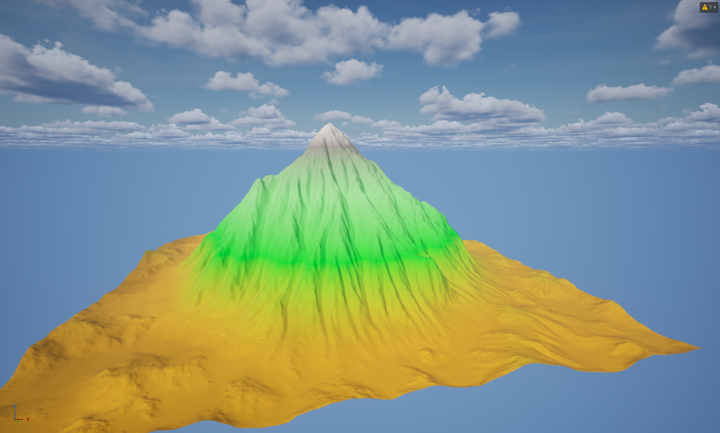
For the initialisation process you can choose among three different approaches in the editor:
1. Geometry source
2. Heightmap source
3. Colour map source
All the tools work with a given material MI_LandscapeGen, optimized for keeping data from Houdini grid volumes into paint layers and edit layers in UE. Specifically, the generated layers will be:
• Paint Layers:
o Base - white preview layer
o Fullmask – light-red layer painting the elevation higher than 0
o Mask - empty layer to be used as mask input from the artist
• Edit Layers:
o Debris - empty layer for erosion data
o Flow - empty layer for erosion data
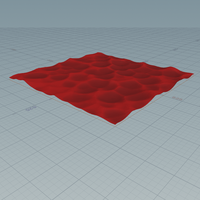
Geometry Source
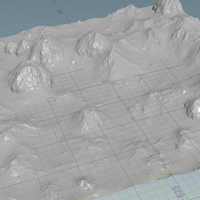
After creating any kind of blocking geometry, either in a DCC or using UE’s modelling tools, you can use Landscape From Geo to prime the landscape generation process.
Steps:
1. Select the blocking geometry as geometry input for the tool.
2. Define the landscape output name. This will be used when baking the geometry.
3. Define the size of the landscape (expressed in meters).
4. Define the resolution of the landscape, according to UE standard landscape resolutions. This can be either:
a. 127x127
b. 253x253
c. 505x505
d. 1009x1009
e. 2017x2017
f. 4033x4033
g. 8129x8129
The default value for the landscape resolution is 505x505 to keep cooking time low while setting up the tool. The tool recooks automatically upon geometry input change or landscape size change. In any moment you can launch a recook through the button Cook.
Set the output resolution only before the final cook and bake.
The Landscape From Geo tool gives you the possibility to remap the heightfield, by activating the Heightfield Remap toggle and pressing the Compute Range button.
At this point, it is possible to review the Output Min and Output Max values to remap the landscape.
• Compute Range button: Click to fill in the Input min and Input max parameters with the current minimum and maximum values in the input landscape.
• Input Min: The lowest value in the input to map from.
• Input Max: The highest value in the input to map from.
• Output Min: The new minimum value in the output to map to.
• Output Max: The new maximum value in the output to map to.
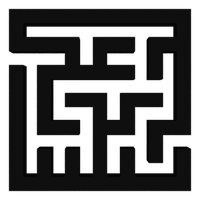
Heightmap Source
If you have a starting heightmap file available (standard black-white gradient), you can use the Landscape From Heightmap tool.
Steps:
1. Select the heightmap image.
2. Define the landscape output name. This will be used when baking the geometry.
3. Define the size of the landscape (expressed in meters).
4. Define the resolution of the landscape, according to UE standard landscape resolutions. This can be either:
a. 127x127
b. 253x253
c. 505x505
d. 1009x1009
e. 2017x2017
f. 4033x4033
g. 8129x8129
5. Define the height scale multiplier, value range from 1 to 100.
6. Define the heightmap rotation, value 0 to 360.
The default value for the landscape resolution is 505x505 to keep cooking time low while setting up the tool.
This tool will not autocook on start-up. Cooking is manual, through the Cook button, or whenever the size, scale or rotate parameters are changed.
Set the output resolution only before the final cook and bake to save iteration time.
Colour Map Source
If you want to start from a custom colour map file, you can use the Landscape From Image tool.
The colour map should be coded as follows:
• Alpha 0 background --> no elevation data
• Blue channel (0,0,255) --> lowest elevation data
• Green channel (0,255,0) --> middle elevation data
• Red channel (255,0,0) --> highest elevation data
Steps:
1. Select the colour image.
2. Define the landscape output name. This will be used when baking the geometry.
3. Define the size of the landscape (expressed in meters).
4. Define the resolution of the landscape, according to UE standard landscape resolutions. This can be either:
a. 127x127
b. 253x253
c. 505x505
d. 1009x1009
e. 2017x2017
f. 4033x4033
g. 8129x8129
5. Define the height scale multiplier, value range from 1 to 100.
6. Define the heightmap rotation, value 0 to 360.
The default value for the landscape resolution is 505x505 to keep cooking time low while setting up the tool.
The height scale acts as a multiplier (in meters) for the colour channels of the source image. If you apply a value of 50, this value will be the height scale of the red channel, the green channel will be 25 (.5 multiplier), and the blue channel will be 5 (.1 multiplier).
This tool will not autocook on start-up. Cooking is manual, through the Cook button, or whenever the size, scale or rotate parameters are changed.
Set the output resolution only before the final cook and bake to save iteration time.